1
Download and Install Hiddify
Click the button below to download the Hiddify installer for Windows.
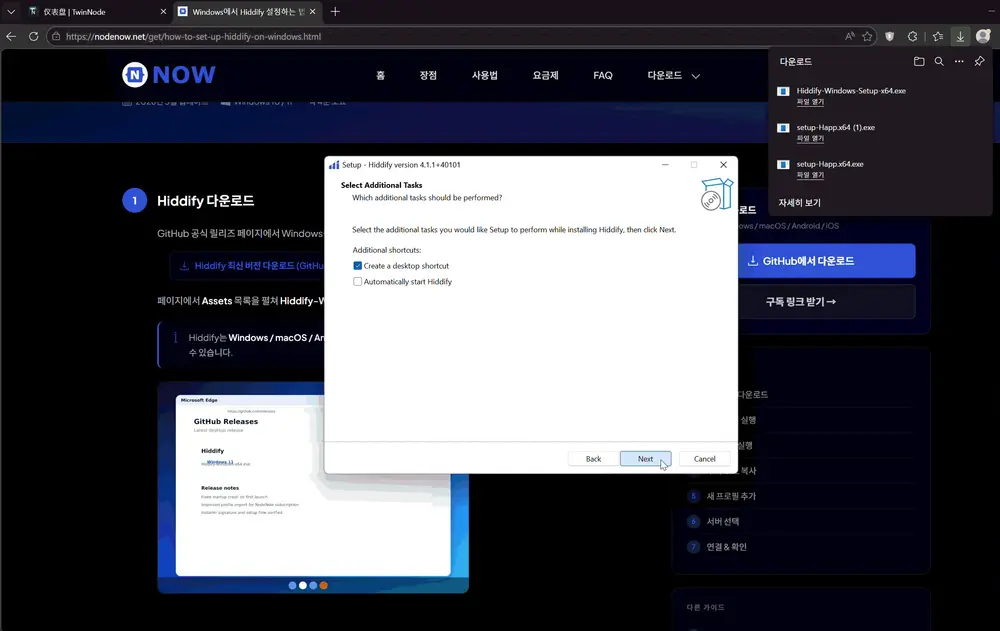
Double-click the downloaded Hiddify-Windows-Setup-x64.exe file to begin installation.
- Click Next when the setup wizard opens.
- Verify the installation path and click Install.
- Click Finish once the installation is complete.
If a Windows SmartScreen warning appears, click "More info" and then "Run anyway". Allow any prompts from your security software.
Hiddify is a multi-platform app supporting Windows, macOS, Android, and iOS. You can use the same subscription URL across all your devices.
2
Launch, Add Subscription & Connect
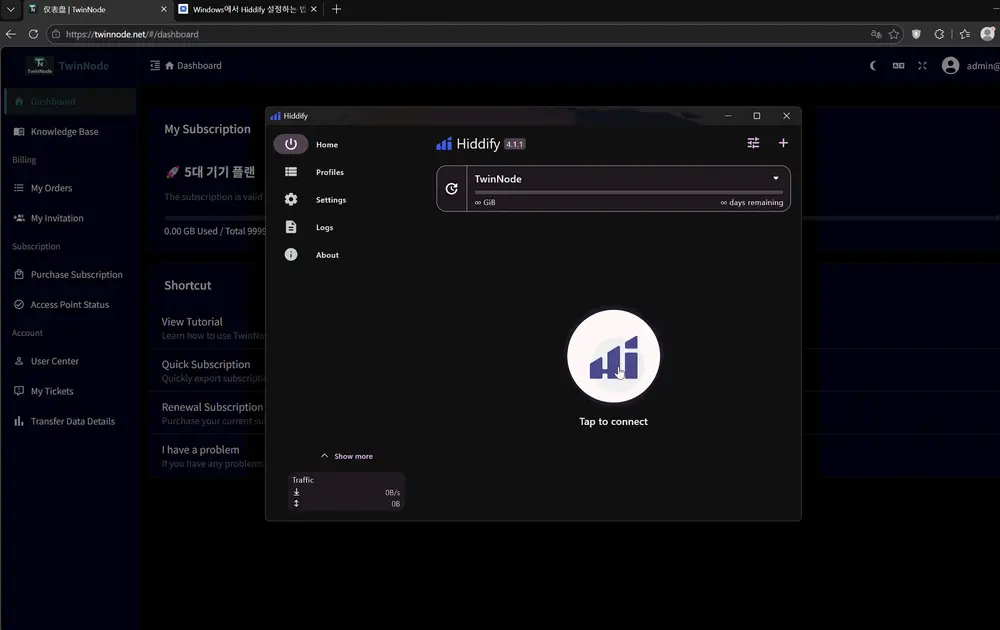
Launch Hiddify from your desktop or start menu. Choose your preferred language during initial setup and click Allow Access if a Windows Firewall prompt appears.
Follow these steps to add your NodeNow subscription:
- Log in to NodeNow Account Center and click Copy Subscription (Universal) to copy your unique URL.
- In Hiddify, click the "+" button and select Add by URL.
- Paste (Ctrl+V) your subscription URL and click OK.
- Select NodeNow from the profile list and choose your desired server.
- Toggle the Connect switch to ON on the main screen to enable the VPN.
Your subscription URL contains unique connection details. Do not share it with others.
Auto selection mode is recommended for beginners; Hiddify will automatically pick the fastest server and protocol.
If certain websites don't open after connecting, try changing the Proxy Mode to Global in Hiddify settings.