Battery Consumption Note: Since VPN apps handle all network traffic, Android battery settings may show high power usage for this app. However, the actual power consumed by the app itself is minimal. You can use it without concern.
1
Download Clash Meta (v2.11.25)
Choose the correct file for your smartphone or device and install it. Use the fastest download link available.
For Smartphones (arm64-v8a) For Smart TV / Set-top Box (armeabi-v7a)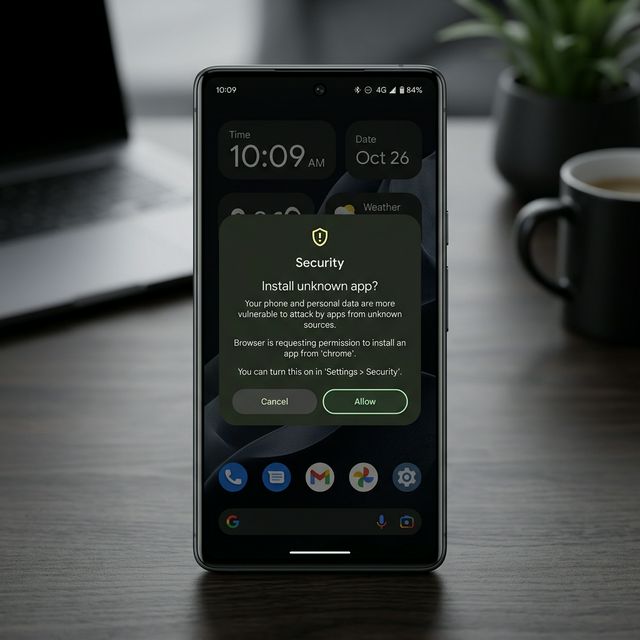
When installing APK files, your browser may show a "Security warning: install unknown apps". Tap Allow (or Settings) to complete the installation.
2
Access NodeNow Subscription
After installing Clash Meta, proceed to import your subscription.
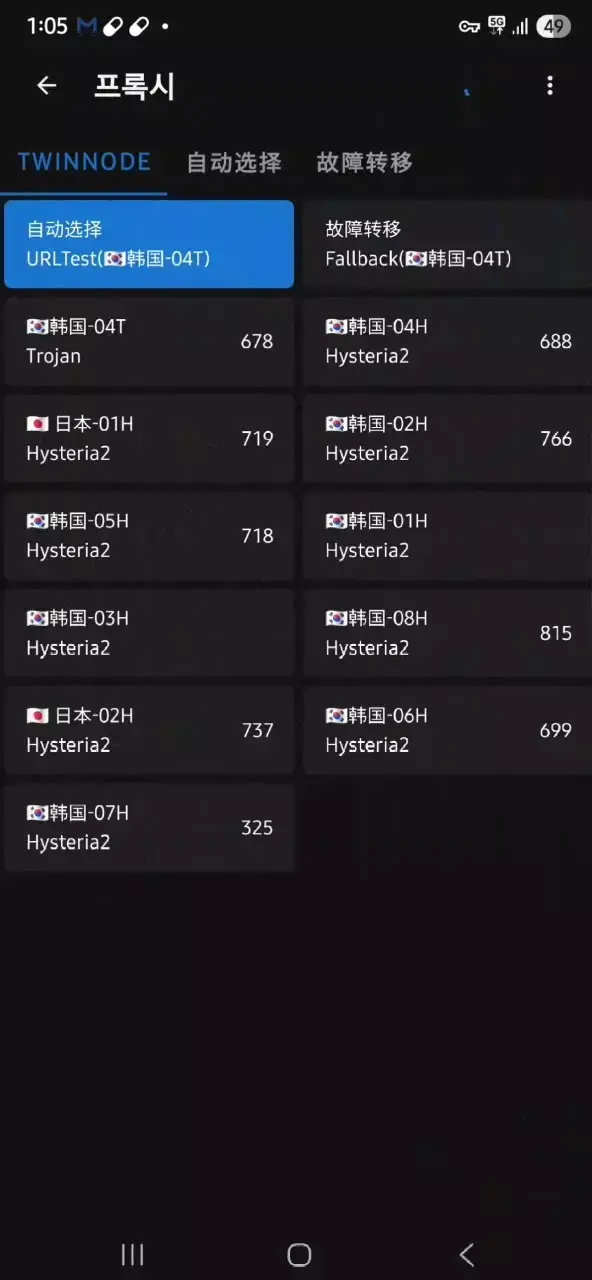
- Log in to NodeNow Account Center using your mobile browser (Chrome, Edge, Firefox, etc.).
(Some domestic or Chinese browsers may block the site, so Google Chrome is recommended.) - Navigate to the My Subscriptions (Dashboard) menu.
3
One-Click Subscription Import
You can add server settings to Clash with a single button click without manual typing.
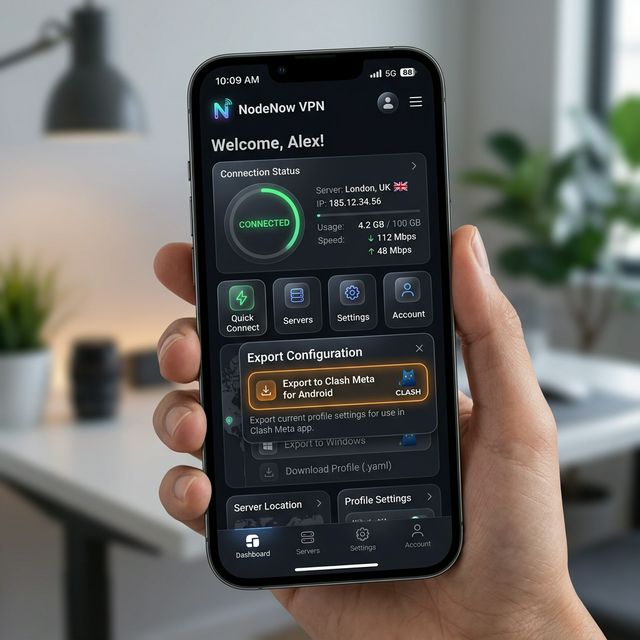
- Find the "Batch Subscription" (or "1-Click Copy Batch Subscription") button on the dashboard.
- Tap the Export to Clash Meta For Android button.
- The Clash app will open automatically with the configuration window.
Is one-click import not working? Copy manually:
Tap the "Copy Subscription Link" button on the website, then open the Clash app -> Profiles -> tap + at the top right -> select URL -> paste the link and tap the icon at the top right to save.
Tap the "Copy Subscription Link" button on the website, then open the Clash app -> Profiles -> tap + at the top right -> select URL -> paste the link and tap the icon at the top right to save.
4
Profile Settings (Auto Update)
Enable automatic updates to keep your server information current.
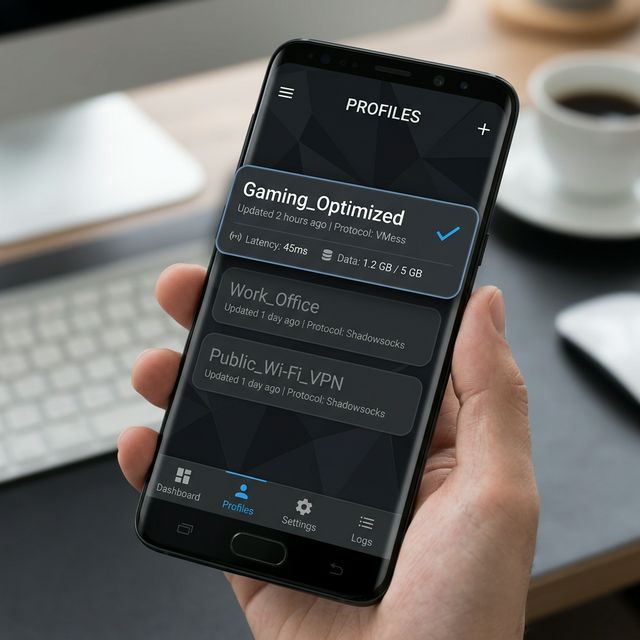
- In the Profiles tab, find the subscription you just imported.
- Tap to activate it (a blue checkmark will appear).
- Tap the small button at the top right of the subscription item to set the update interval (e.g., Daily) and save.
- Tap the refresh icon at the top to confirm the profile updates successfully.
5
Start Connection & Node Selection
Now, let's connect!
- Go to the Dashboard (首页) menu on the bottom left.
- Tap the round Start (启动) button so it lights up.
- When the VPN permission popup appears, tap Allow to accept.
When the key 🔑 icon appears in your status bar, the connection is successful.
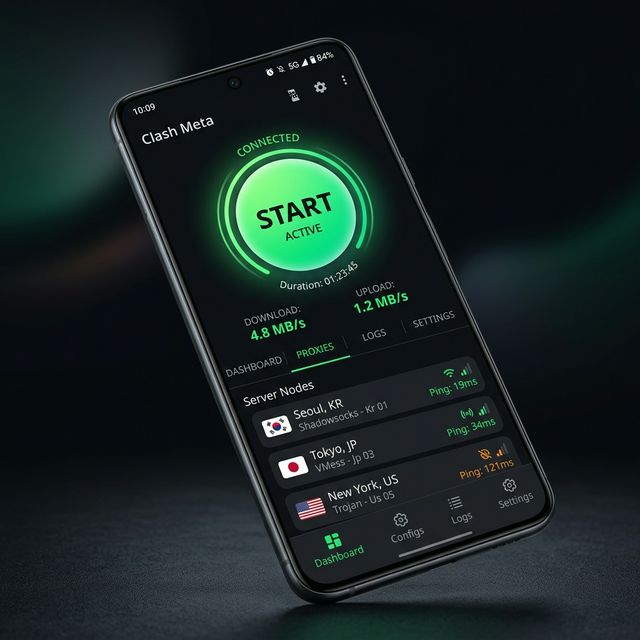
Go to the Proxies (代理) tab to choose "Auto" for optimal node switching, or manually select a specific country or node. Auto mode is recommended.